File Operations
Encrypt, decrypt, sign, and verify files with pgpilot.
Encryption
Section titled “Encryption”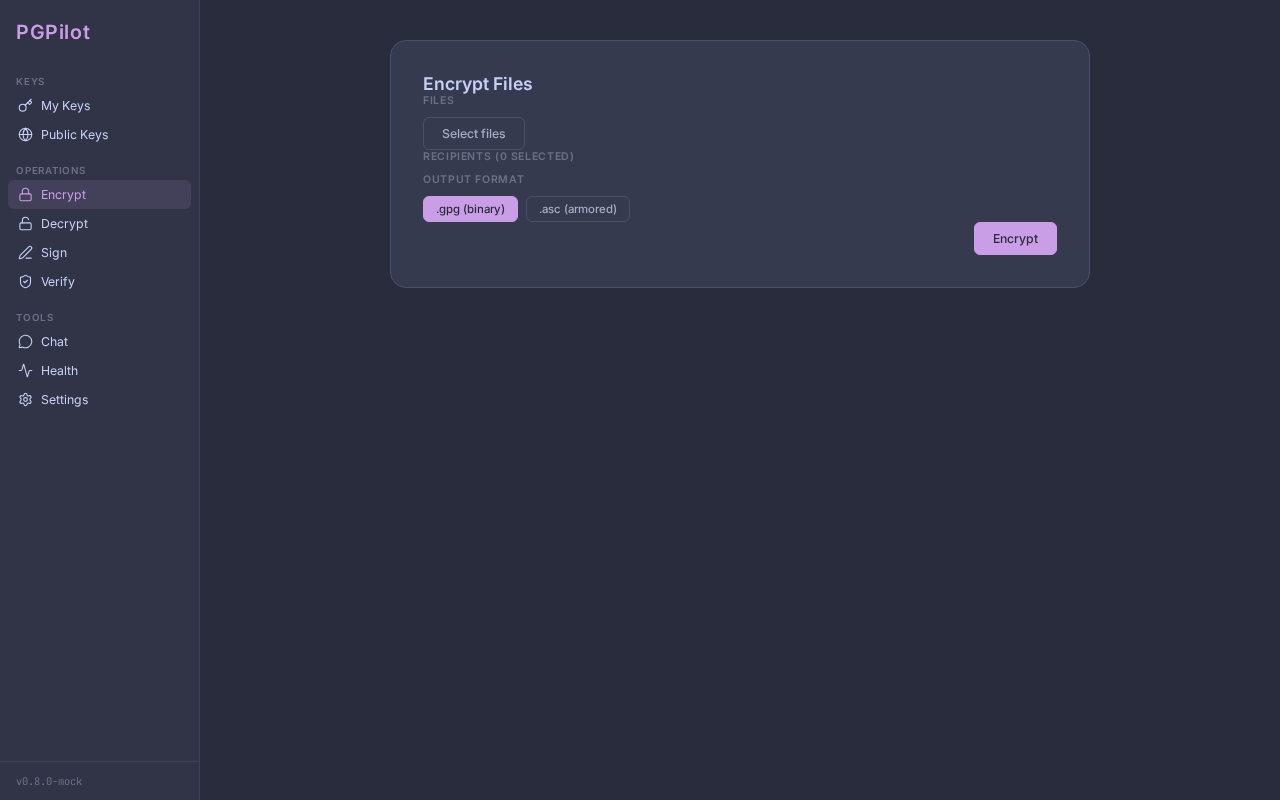
Encrypt files so only your chosen recipients can read them.
Encrypt a file
Section titled “Encrypt a file”- Click Encrypt in the sidebar
- In the Encrypt view:
- Click Add Files to select one or more files
- Files appear in a list below
- Select Recipients — click on key chips to toggle recipients:
- Keys are displayed as toggleable chips arranged in a 2-column grid
- Only keys with Encryption subkeys can be selected
- Each chip shows the key name and email, plus a trust icon:
- ✓ (green) — Full or Ultimate trust (recommended)
- ⚠️ (amber/peach) — Marginal or Undefined trust (warning)
- Selected chips highlight with the theme accent color
- Choose format:
- Binary (
.gpg) — compressed, smaller, binary - Armored (
.asc) — text-based, readable, larger, ASCII-only
- Binary (
- Click Encrypt
If any recipient’s trust is Undefined or Marginal, a warning modal appears:
⚠️ Untrusted keysSelected keys do not have sufficient trust level.Continue? (uses --trust-model always)Click Continue to proceed (pgpilot adds --trust-model always to bypass trust checks).
Output: Encrypted files are created next to the original:
document.pdf→document.pdf.gpg(binary) ordocument.pdf.asc(armored)- If file already exists, a counter suffix is added:
document_1.pdf.gpg,document_2.pdf.gpg, etc.
Drag & drop (X11)
Section titled “Drag & drop (X11)”On X11 systems, you can drag files directly onto the Encrypt view:
- Open the Encrypt view
- Open a file manager in another window
- Drag files from the file manager to pgpilot
- Files are added to the list
Note: Wayland support depends on compositor; may not work on all Wayland systems.
Trust warning override
Section titled “Trust warning override”pgpilot’s default behavior is conservative: it warns before encrypting to untrusted keys. To bypass:
- Check untrusted keys in the Recipients list
- Click Encrypt
- If warning appears, click Continue
- pgpilot uses
--trust-model always(bypasses trust validation without modifying trust database)
This is safe for one-off scenarios (e.g., encrypting to a key you haven’t verified yet, but want to send anyway).
Decryption
Section titled “Decryption”Decrypt files that were encrypted for you.
Decrypt a file
Section titled “Decrypt a file”- Click Decrypt in the sidebar
- In the Decrypt view:
- Click Add Files
- Select one or more
.gpgor.ascfiles
- pgpilot scans each file:
- Shows Can decrypt (green) if your private key exists
- Shows No key (red) if you lack the decrypt key
- Shows Checking… while inspecting
- Click Decrypt
- pgpilot prompts for your private key password (via
gpg-agent/pinentry) - Decrypted files are created next to originals:
document.pdf.gpg→document.pdf(same name, no .gpg extension)- If file exists, counter suffix added:
document_1.pdf,document_2.pdf, etc.
Auto-check capability
Section titled “Auto-check capability”When you add files to decrypt, pgpilot automatically checks if you have the private key:
- Green checkmark = you can decrypt
- Red X = missing private key (file stays encrypted)
Signing
Section titled “Signing”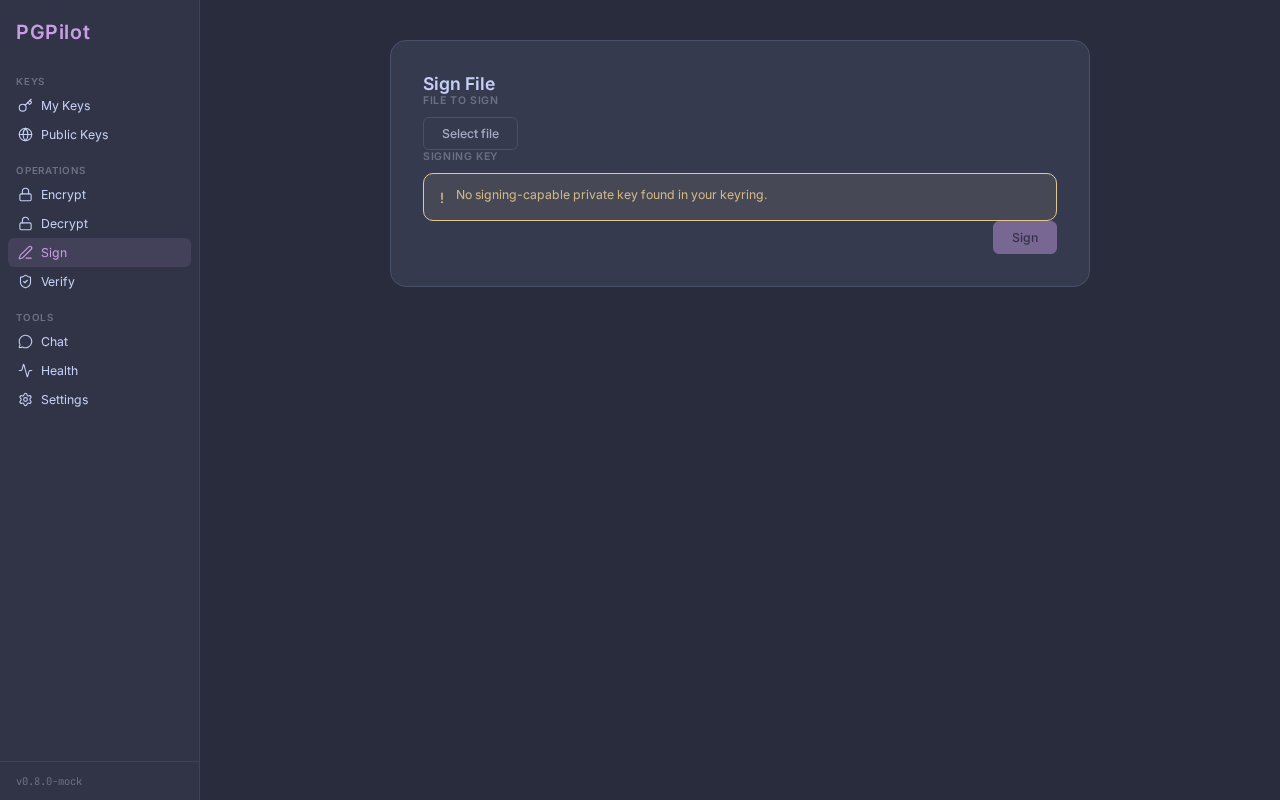
Sign files to prove you created them.
Sign a file
Section titled “Sign a file”- Click Sign in the sidebar
- In the Sign view:
- Click Choose file
- Select the file to sign
- Choose Signing key:
- pgpilot filters to keys with Sign subkeys
- Select your key
- Click Sign
- pgpilot prompts for your private key password
- A detached signature is created:
yourfile.signext to the original
What is a detached signature?
A .sig file proves that you signed the original file. Unlike signing inside the file, the signature is separate, so:
- Original file remains unchanged (
yourfile.pdfis still a valid PDF) - Signature is lightweight (
yourfile.sigis much smaller) - Recipient can verify with:
gpg --verify yourfile.sig yourfile.pdf
If file already has a .sig, counter suffix added: yourfile_1.sig, yourfile_2.sig, etc.
Signature Verification
Section titled “Signature Verification”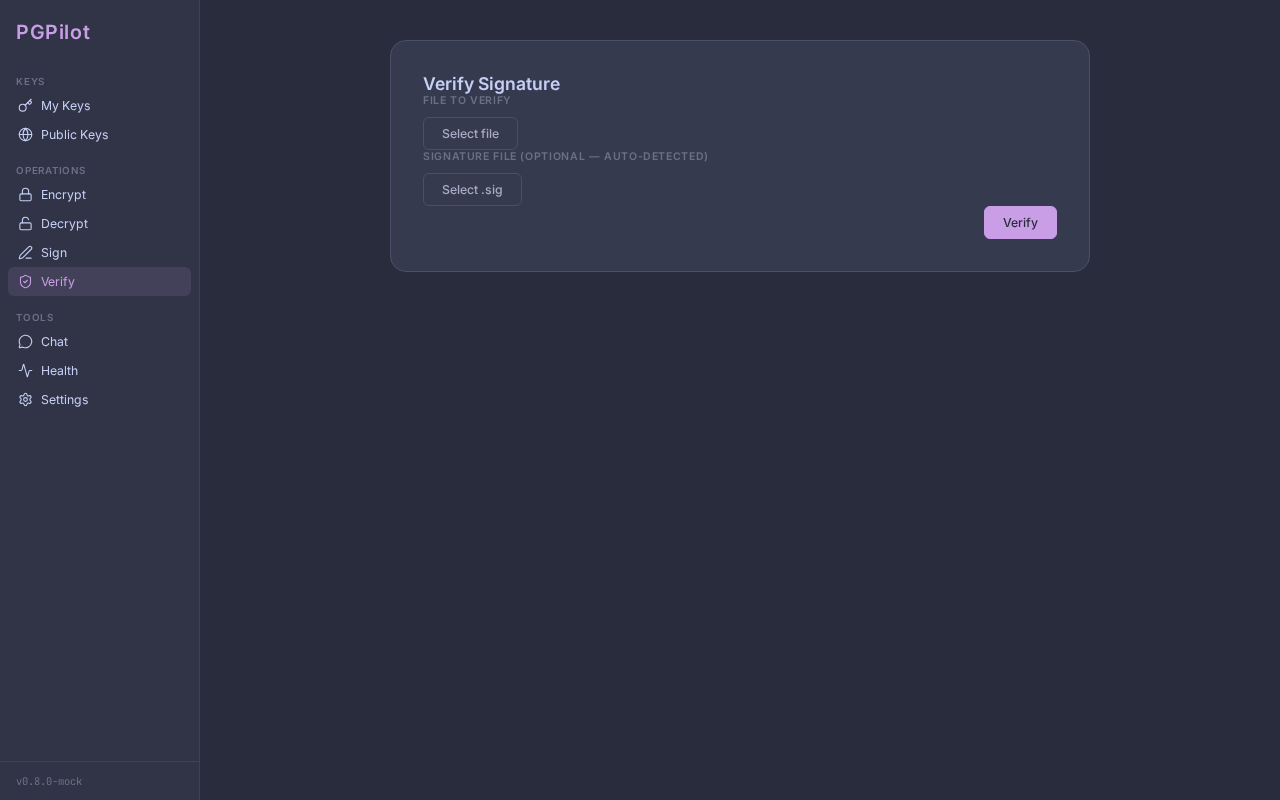
Verify that a file was signed by who you think signed it.
Verify a signature
Section titled “Verify a signature”-
Click Verify in the sidebar
-
In the Verify view:
- Click Choose file → select the original file (e.g.,
document.pdf) - Click Choose signature → select the
.sigfile
Auto-detect: If you choose
document.pdf, pgpilot automatically looks fordocument.pdf.sigin the same folder. - Click Choose file → select the original file (e.g.,
-
Click Verify
-
pgpilot calls
gpg --verifyand shows a result:
Valid signature
Section titled “Valid signature”✓ Valid signatureSigned by: Alice Wonder <alice@example.com>Fingerprint: ABCD1234...Date: 2024-01-15 at 14:30:00 UTCTrust: Full ✓Green checkmark, signer details shown. File is authentic.
Bad signature
Section titled “Bad signature”✗ Invalid signatureThe signature does not match the file.The file may have been modified.Red X. The file has been tampered with since signing.
Unknown key
Section titled “Unknown key”? Unknown keySigned by (Key ID): 1234567890ABCDEFFingerprint: Not found in keyringYellow warning. Signature is valid, but the signer’s key is not in your keyring. You cannot verify authenticity.
Next step: Import the signer’s key from a keyserver, then re-verify.
Expired key
Section titled “Expired key”⏱ Expired keySigned by: Bob Smith <bob@example.com>Key expired on: 2023-12-31Orange warning. The signer’s key has expired, but the signature was valid at signing time.
Revoked key
Section titled “Revoked key”🔴 Revoked keySigned by: Charlie Brown <charlie@example.com>The key was revoked (reason: compromise)Red warning. The signer revoked their key (possibly due to compromise). Don’t trust this signature.
Format toggle
Section titled “Format toggle”pgpilot offers two encryption formats:
| Format | Extension | Type | Use Case |
|---|---|---|---|
| Binary | .gpg |
Compressed, binary | Secure transfer, email attachment |
| Armored | .asc |
Text (ASCII), readable | Paste into email body, GitHub gists, web forms |
Toggle between formats with the Format button in the Encrypt view.
Best practices
Section titled “Best practices”-
Always verify signatures
- Don’t assume a
.sigfile is legitimate - Verify before trusting content
- Don’t assume a
-
Check trust before verifying
- Invalid signature ≠ untrusted signer
- Check the signer’s trust level in My Keys
-
Encrypt to multiple recipients
- Each recipient gets their own encrypted copy (pgpilot handles this)
- No single file that “everyone decrypts with different passwords”
-
Keep signatures with files
- Store
.sigand original together - If you move the file, move the
.sigtoo
- Store
-
Test before sending
- Encrypt a test file to yourself
- Decrypt it to verify it works
- Then send to real recipients
Troubleshooting
Section titled “Troubleshooting”“Password prompt hangs”
- See Troubleshooting — pinentry issues
“File already exists”
- pgpilot automatically adds counters:
file_1.gpg,file_2.gpg, etc. - Delete the old encrypted file if you want to overwrite
“Signature file not found”
- pgpilot looks for
yourfile.signext toyourfile - If in different folders, manually choose both files
“Decrypt failed: No secret key”
- You don’t have the private key for this encrypted file
- The file was encrypted for someone else
- Ask them to decrypt and share unencrypted (or re-encrypt for you)
Next steps
Section titled “Next steps”- Manage who can decrypt — see Key Management (Trust Levels)
- Publish your key so others can send you encrypted files — see Keyserver & Sharing
- Use SSH with your Auth key — see YubiKey / Smartcard